
Reviewing expiring & expired items
The Alerts tab lists everything past or about to pass its expiration date, plus low-stock items, with the most critical at the top.
-
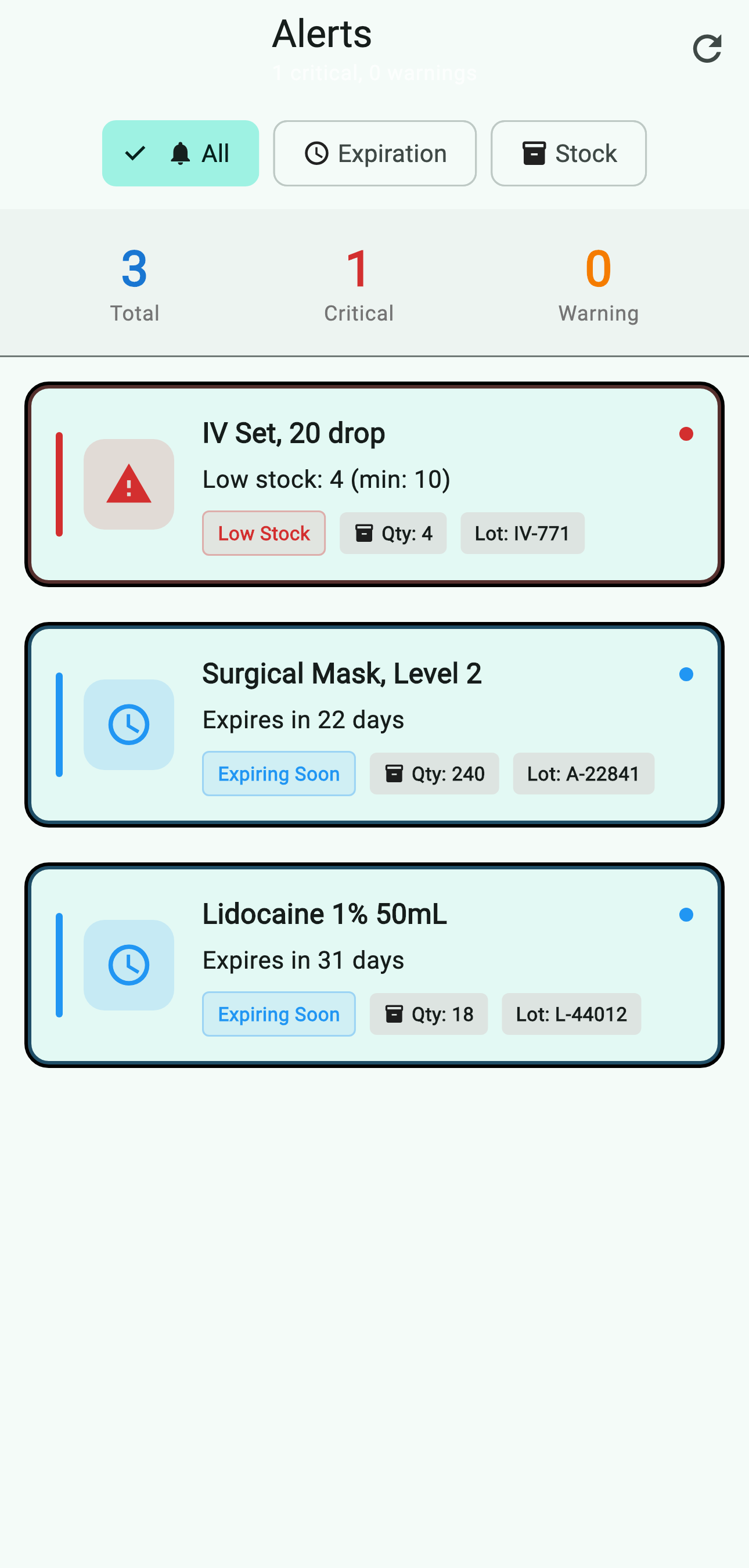
Open the Alerts tab. The header shows the totals; the list is sorted critical → warning → info.
-
Each card shows the item name, why it triggered the alert ("Expires in 22 days" or "Low stock: 4 (min: 10)"), the current quantity, and the lot number when available. Tap a card to jump to the item's detail screen where you can dispense, mark wasted, or transfer.
-
Use the filter chips to narrow the list:
- Expiration (1) shows only items with date-driven alerts (expired or expiring soon).
- Stock (2) shows low-stock and out-of-stock items only.
-
Pull-to-refresh or tap the refresh icon (3) to re-evaluate alerts after making changes elsewhere — useful if a teammate just dispensed an item that was on this list.
