
Adding a supply
There are two ways to add a supply to your inventory: scan a GS1 barcode and let Healthcare Supply Manager fill the form for you, or type the details by hand.
From the inventory home
-
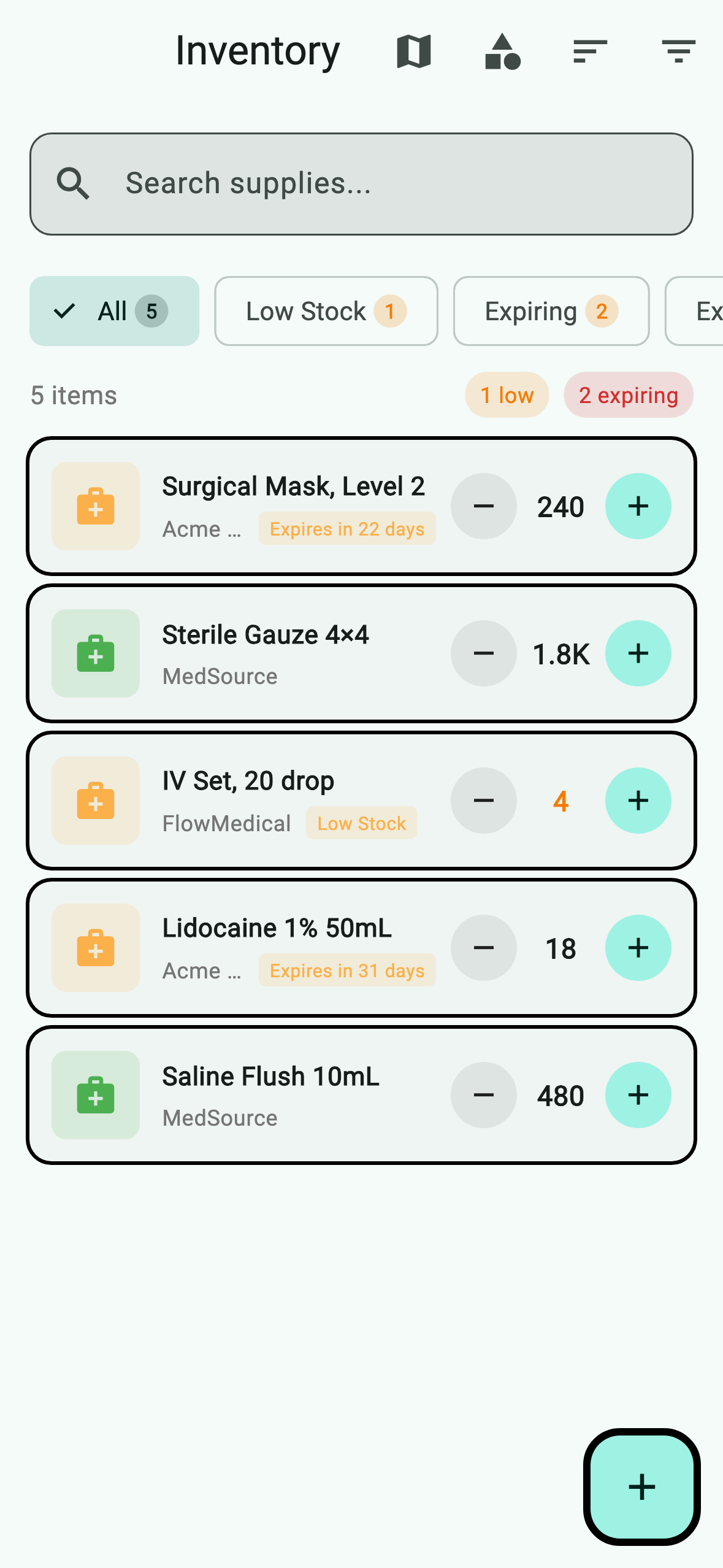
Open the Inventory tab. You'll see every supply in your active location, color-coded by status. Use the search bar (1) to find a specific item, or tap the filter icon (2) in the top bar to narrow the list by stock level, expiration, or location status.
-
Tap the + button (3) in the bottom-right corner to add a new supply.
-
Choose Scan barcode to use the camera, or Enter manually to type in the GTIN, lot number, and expiration date by hand.

From the scanner
If your scanner is already open — for example, you just finished a shelf scan — tap the + in the recognized-product card to add the scanned item to inventory directly. The form opens with GTIN, lot, and expiration prefilled from the barcode's GS1 application identifiers.
What happens next
The new supply is saved locally first, then synced to your team in the background. You'll see it appear in the inventory list immediately. If you're offline, the sync icon next to the supply shows a pending state and clears once the network is available.