
Searching and filtering
The inventory list grows fast. Two tools narrow it down: the search bar at the top of the screen and the filter chip row beneath it.
Filter by status
-
Open the Inventory tab. Five color-coded chips run across the top of the list — All, Low Stock, Expiring, Expired, and two location chips.
-
Tap Expiring to see only items expiring within 30 days. The badge on the chip shows how many items match.
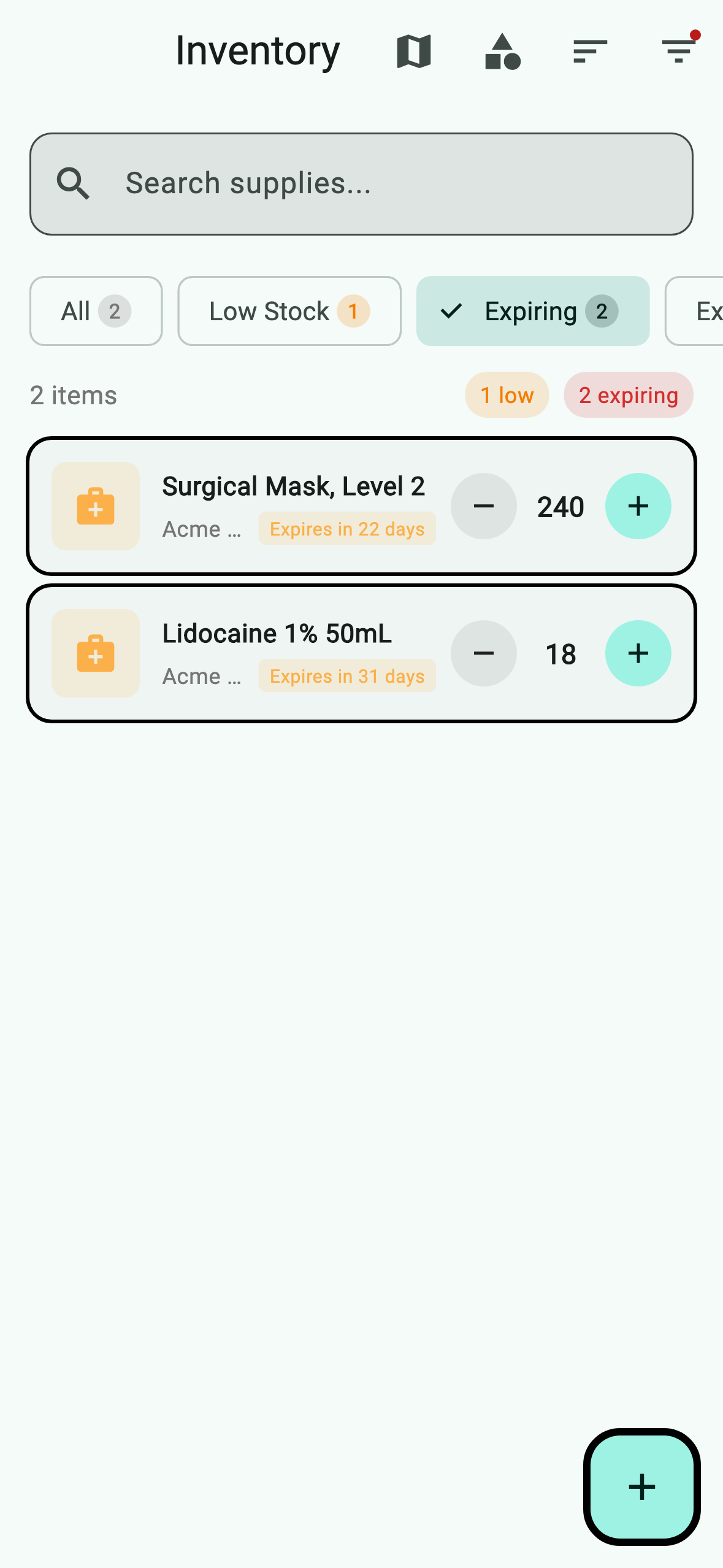
The filter pill (1) turns blue when active and the list now shows only the matching items (2). Tap the pill again to clear it.
-
Combine filters by tapping multiple chips. Tap the location chips (Has Location / Needs Location) to scope the list to items with or without a confirmed shelf position.

Search by name, GTIN, or category
-
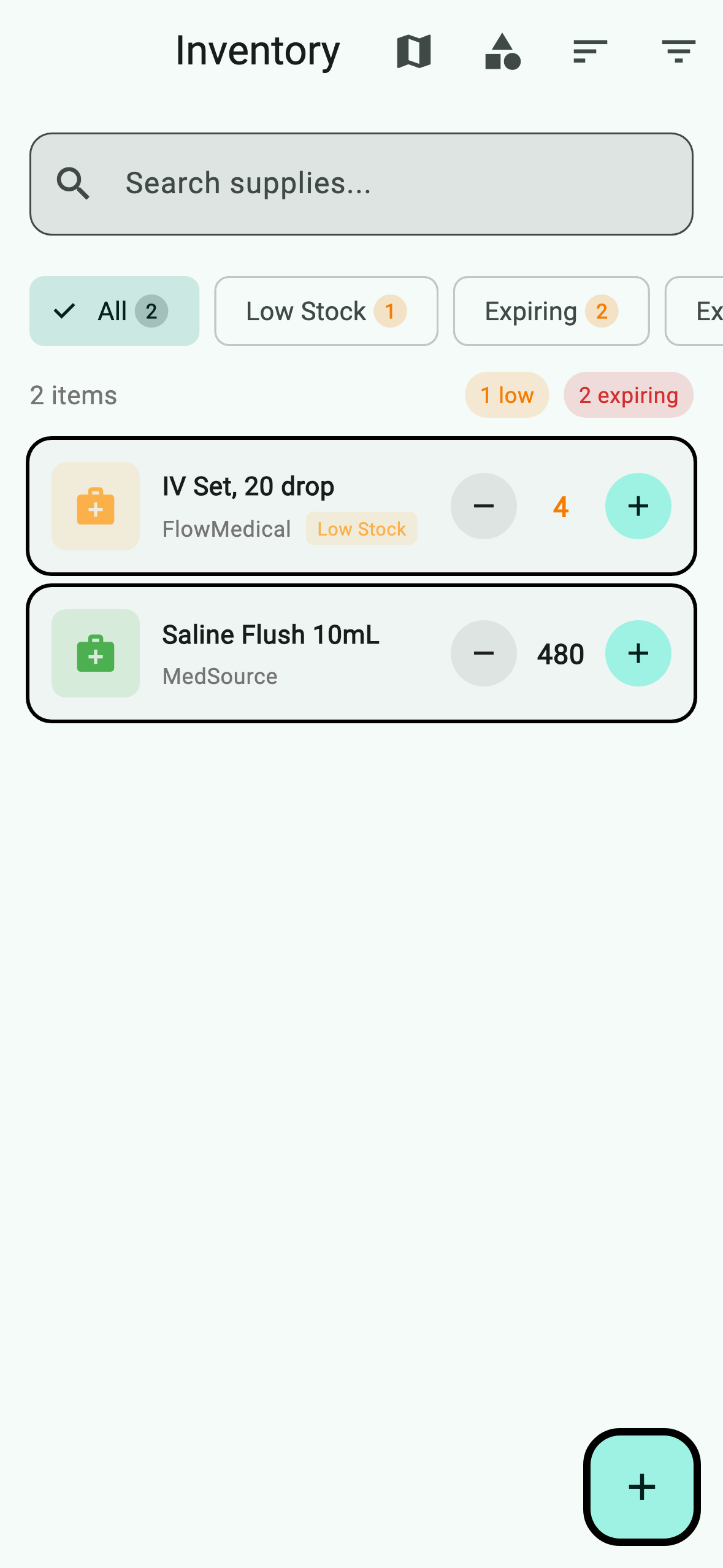
Tap the search bar above the chips and start typing. The list filters as you type — name, GTIN, lot, and category are all searched.
-
Search and chip filters stack: type
IVwith the Expiring chip on, and you'll see only IV-related items expiring soon. Clear the search by tapping the × in the search bar.

What you don't see
If the list comes back empty after filtering, the screen shows a "No items match filters" empty state with a one-tap Clear Filters button — handy when a filter chip is on without you remembering.